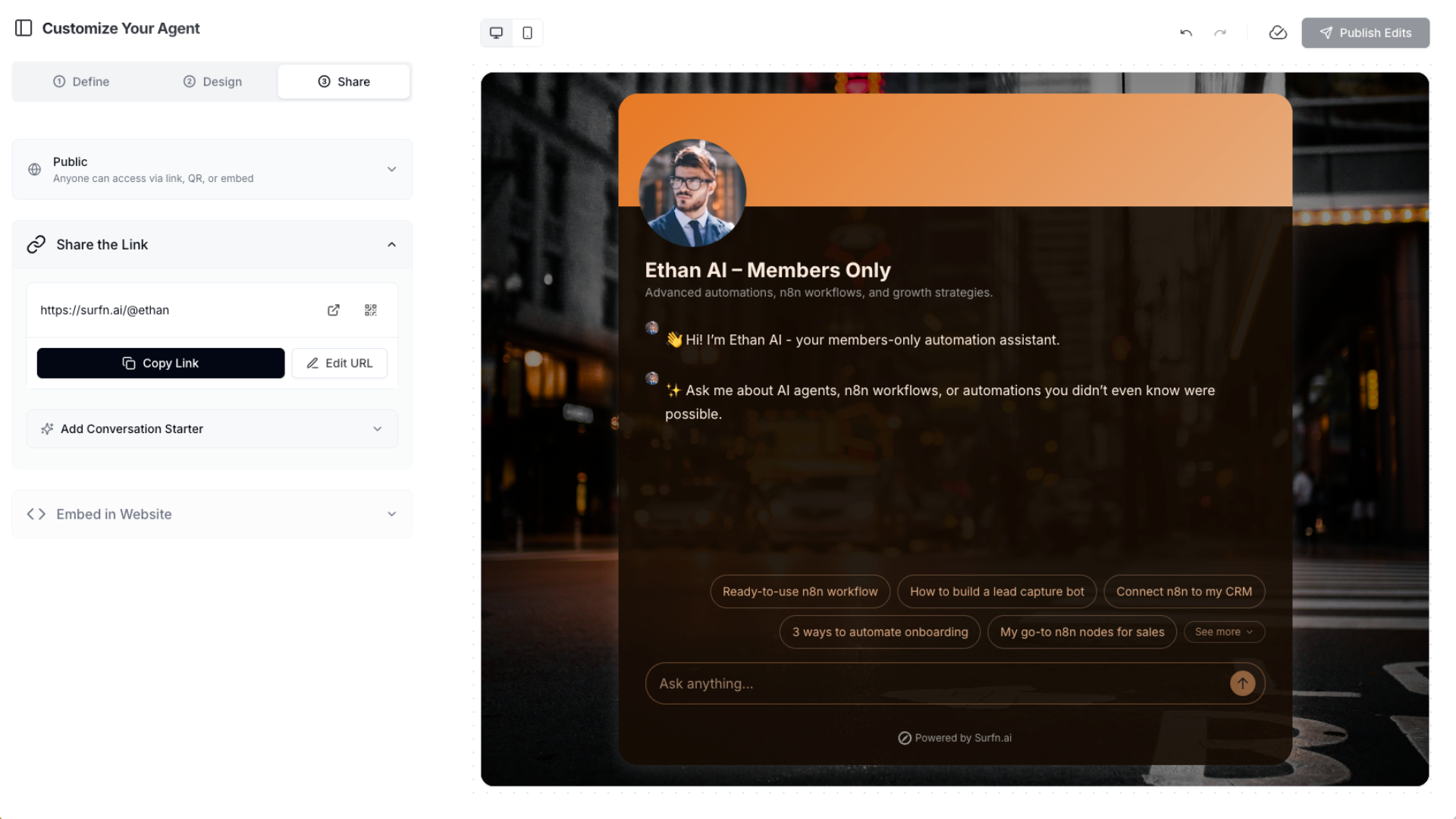
How to Create a Members-Only AI Assistant for Your Community With Surfn
To create a members-only AI assistant in Surfn, sign up for a free account, create a new AI Agent Page, add focused training data like course content, Q&As, files, or YouTube videos, define how the assistant should behave, customize the design, and share it inside your gated member portal or member-only area. A strong first version should help members get answers faster, find the right content, and know what to do next.
If you run a paid community, course, or membership, Surfn lets you create a members-only AI assistant trained on your content so members can get answers, guidance, and personalized help anytime. The setup is simple: create a new AI Agent Page, train it on specific content, define how the assistant should behave, customize the design, then share it with members inside your gated portal or through a link placed in your member-only area.
For coaches, creators, experts, and educators, this matters because most memberships don’t struggle from lack of content. They struggle because members need faster guidance, better onboarding, and an easier way to find the right resource at the right moment. A good members-only assistant helps close that gap.
What can a members-only AI assistant help with?
A members-only Surfn assistant can help members:
find the right lesson, resource, or answer faster
ask recurring questions without waiting on you
get more value from what they already paid for
move toward the right next step inside your membership
It can also make your membership easier to use, especially for new members who feel overwhelmed by too much content and not enough guidance.
One of the strongest versions of this is an AI tutor use case: an assistant trained on your course content, lesson pages, and YouTube videos so members can ask goal-specific questions and get more personalized help.
Want the bigger picture?
If you want to understand how a members-only AI assistant can help increase retention, improve member experience, and support growth across your membership or community, read this guide: How a Members-Only AI Assistant Can Grow Your Paid Membership
What should you prepare before building your assistant?
Decide on one clear use case first. Don’t try to make version one do everything.
A strong starting use case might be:
help members find the right lesson or resource
answer common membership questions
guide new members on where to start
recommend the next best module, tool, or template
serve as an AI tutor trained on your membership content, course materials, and YouTube videos so members can get more personalized lessons, explanations, and answers based on their goals or use cases
Also decide where members will access it. The cleanest setup is usually one of these:
embed the assistant inside your gated member portal
place the agent link inside Skool, Circle, Kajabi, Patreon, or your private dashboard
use a customized URL and, if you want extra control, update the link periodically for active members only
In Surfn, Private means workspace-only. Public means anyone with the link, QR code, or embed can access it. If you want members to use it, the practical move is usually to make it public and place it inside your gated environment or member area.
A simple way to think about it: start with the one job your assistant should do best. For some memberships, that’s answering repeated questions. For others, it’s helping members discover the right content faster. And for educators, creators, and experts with deeper learning material, it may be most valuable as an AI tutor that helps members learn in a more personalized, goal-based way.
Step 1: Create your AI Agent Page and add training data
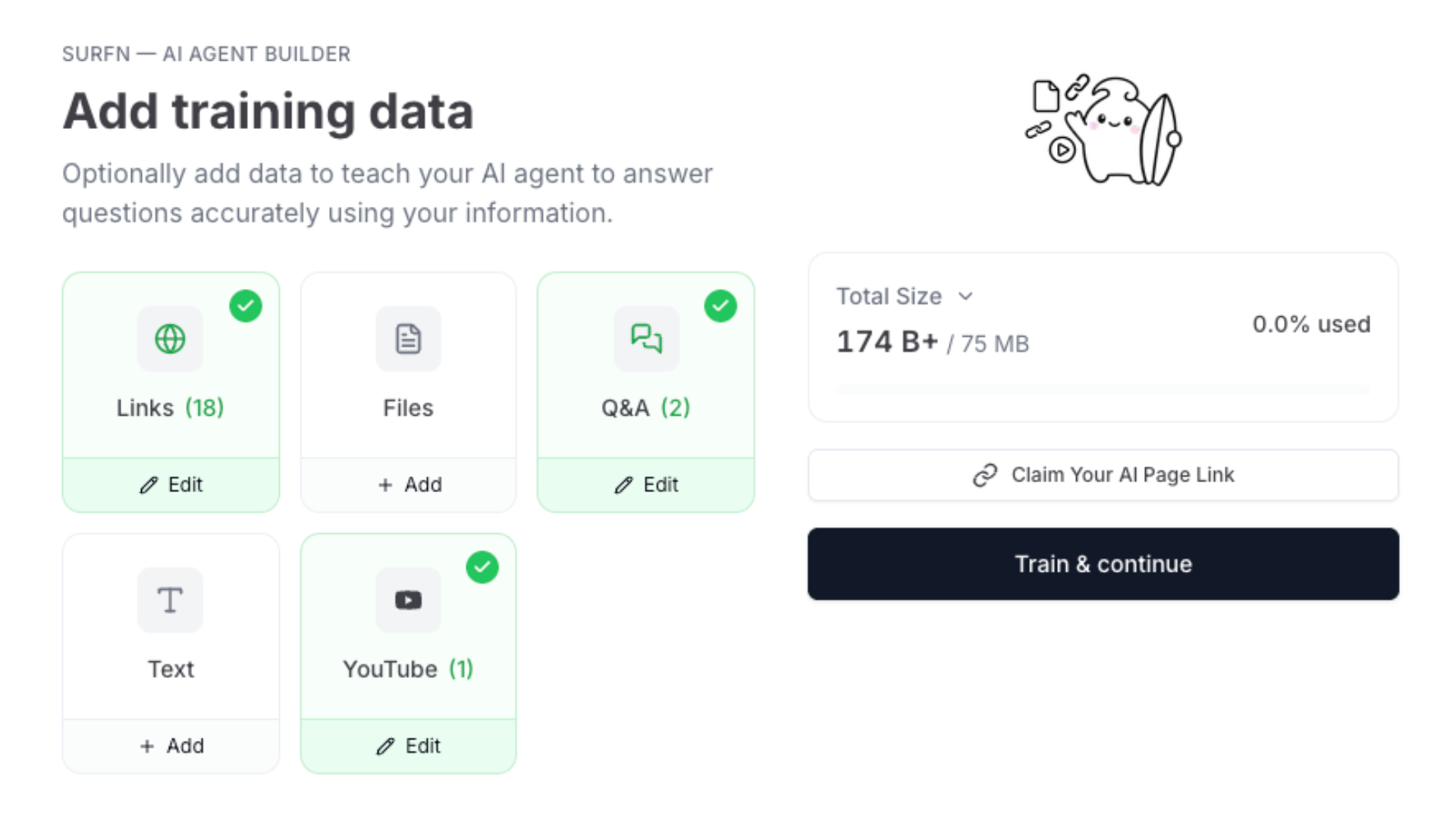
Sign up for a free Surfn account, go to your dashboard, and click + New AI Agent Page. Then start adding the content your assistant should answer from.
You can start with a crawlable website or sitemap, but you don’t need a full website first. If you don’t want to start with a website, use the manual data sources instead:
files like PDF, DOCX, TXT, or MD
Q&A pairs
pasted text
YouTube videos with fetched transcripts
Q&A pairs are especially useful for memberships because they help you teach the assistant exact answers to repeated member questions.
Don’t upload everything at once. Start with your most useful content: onboarding material, core lessons, FAQs, frameworks, and the resources members ask about most often.
This setup is especially useful if you want the assistant to act like an AI tutor trained on your course content, lesson pages, and YouTube videos so members can get more personalized help based on their goals or questions.
What is RAG, in plain English?
Surfn uses retrieval-augmented generation, which means the AI looks up relevant information from the content you added so it can answer based on your material. Your content is not used to train the underlying AI model, and you can add or remove data over time.
Step 2: Define how your assistant should behave
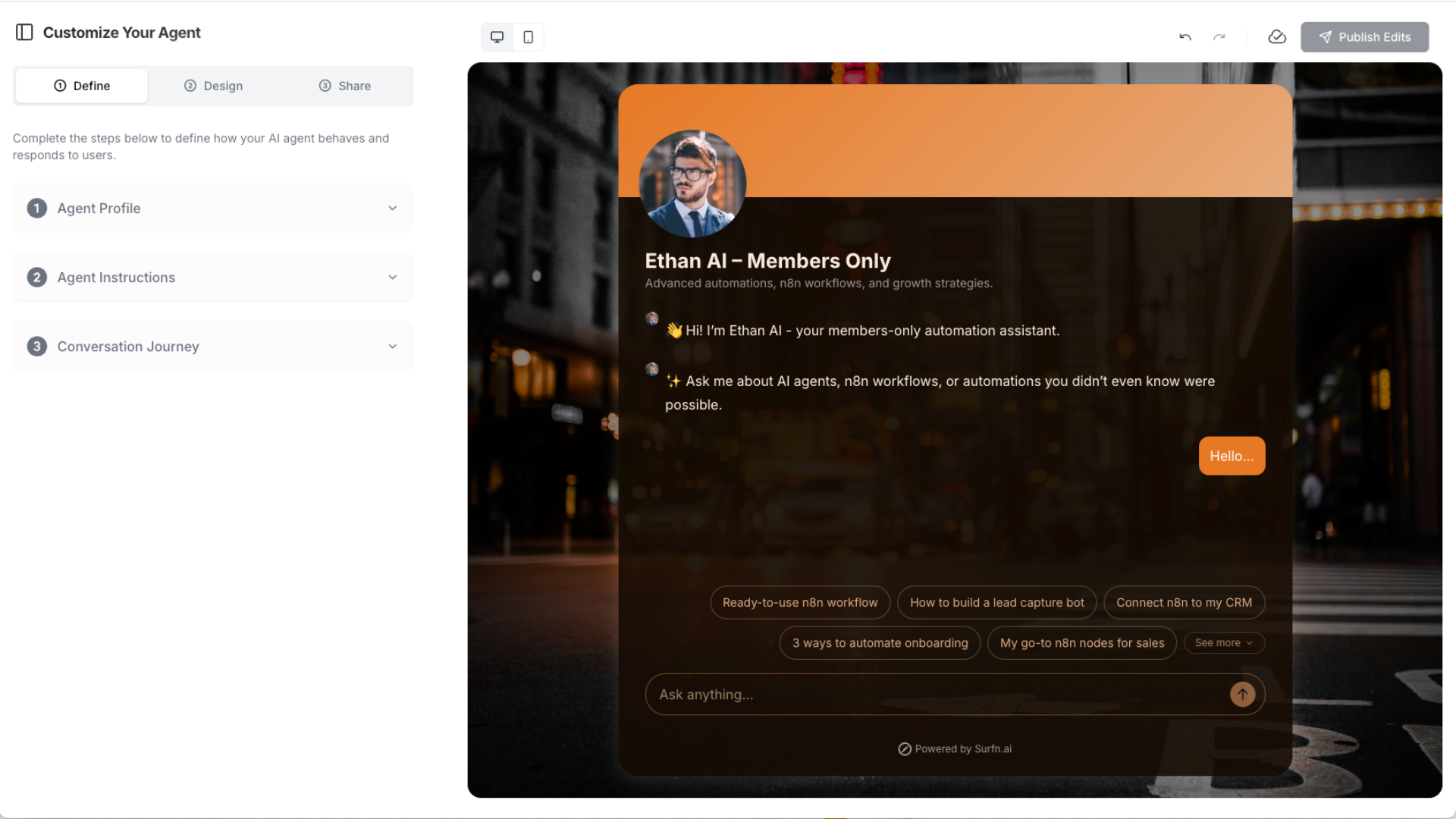
After training, go to the Define tab. This is where you shape how your AI Agent Page presents itself, responds to members, and guides the conversation.
In Surfn, the Define tab is organized into three main sections:
1. Agent Profile
Start with Agent Profile. This is where you set up the basics of how your assistant appears to members.
Here, you can customize things like:
the assistant name
short description
profile image
brand name
message box placeholder
This is the first impression members will get, so make sure it feels aligned with your membership, course, or community brand.
2. Agent Instructions
Next, open Agent Instructions. This is where you define how the assistant should think, respond, and guide members.
Your instructions matter more than most people realize. This is where you tell the assistant:
who it helps
what content it should prioritize
how it should speak
what kind of guidance it should give
what to do if the answer is not in the content
when to recommend a lesson, resource, or next step
Surfn already provides default instructions that work well for many use cases. It’s usually best to start there, then edit them so they better match your brand, audience, and goals. Keep the instructions clear and specific.
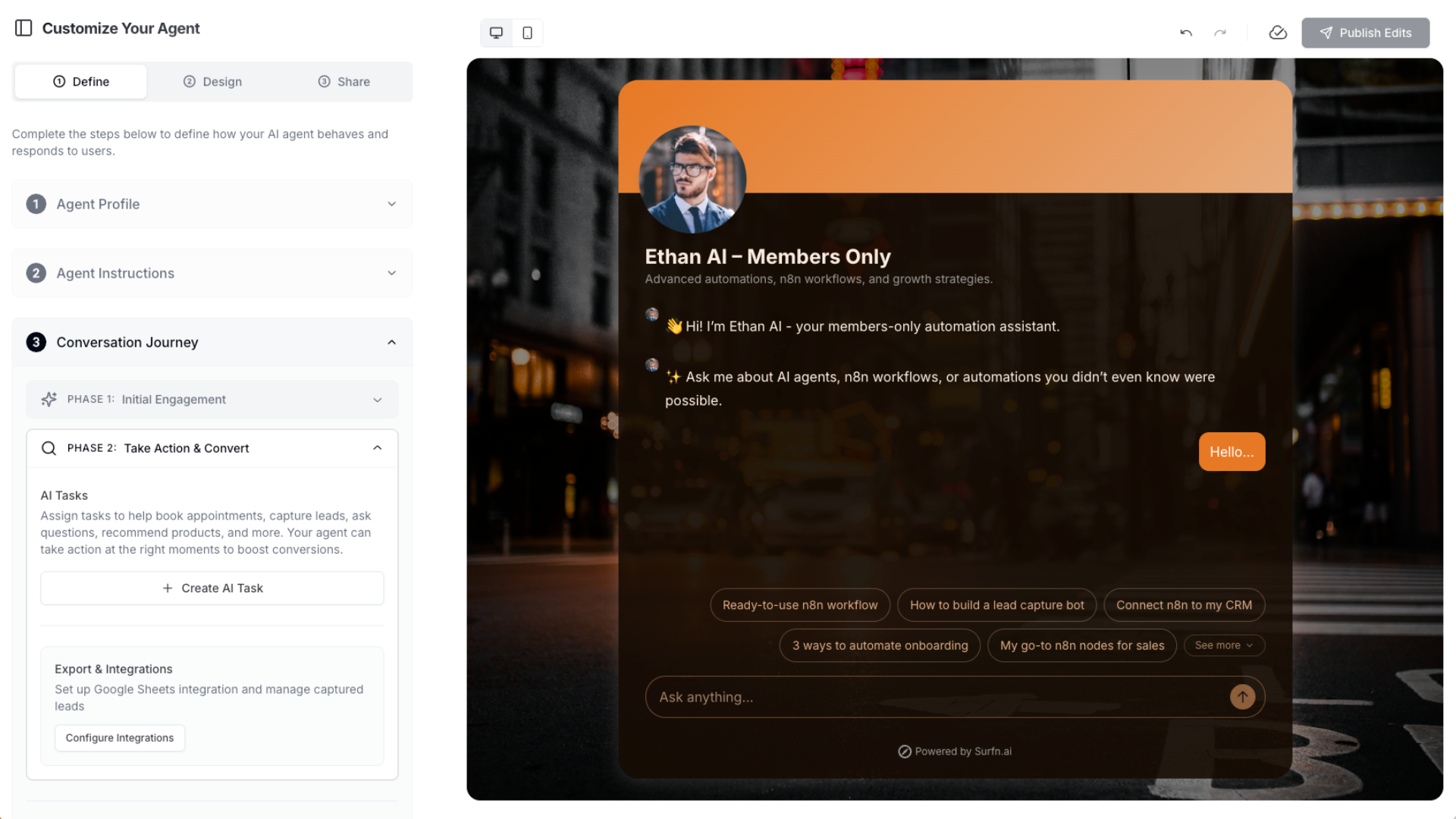
3. Conversation Journey
Then move to Conversation Journey. This is where you shape the member experience inside the chat itself.
Here, you can configure:
welcome messages
suggested message buttons
optional AI follow-up buttons
tasks that help guide users toward the right next step
This section is especially important if you want your assistant to do more than answer questions. You can use it to create a more guided experience that helps members discover content faster, engage with the right resources, and take action when it makes sense.
Good suggested buttons for a membership assistant might be:
where should i start?
recommend the right lesson for me
summarize this topic
quiz me on this topic
what should i do next?
You can also assign tasks within the journey to help drive meaningful actions, such as gathering feedback, launching a form or quiz, guiding members to the right module, booking appointments, or supporting other conversion-oriented next steps inside your membership experience.
By the way, as you build in Surfn, you can preview your agent in real time on the right side of the screen and even chat with it directly to see how it responds based on your training data, instructions, and conversation setup.
Step 3: Add one simple AI Task if needed
If you want the assistant to do more than answer questions, add one AI Task. This is optional, and for a first version, one simple task is enough.
For a membership, a good first AI Task might:
ask questions to gather feedback from members
show a calendar for booking a consultation
launch a quiz
show a form
play a lesson video in chat
guide a member to the right module or resource
collect answers for onboarding or progress check-ins
Keep it narrow. One clean task is far better than three half-baked ones.
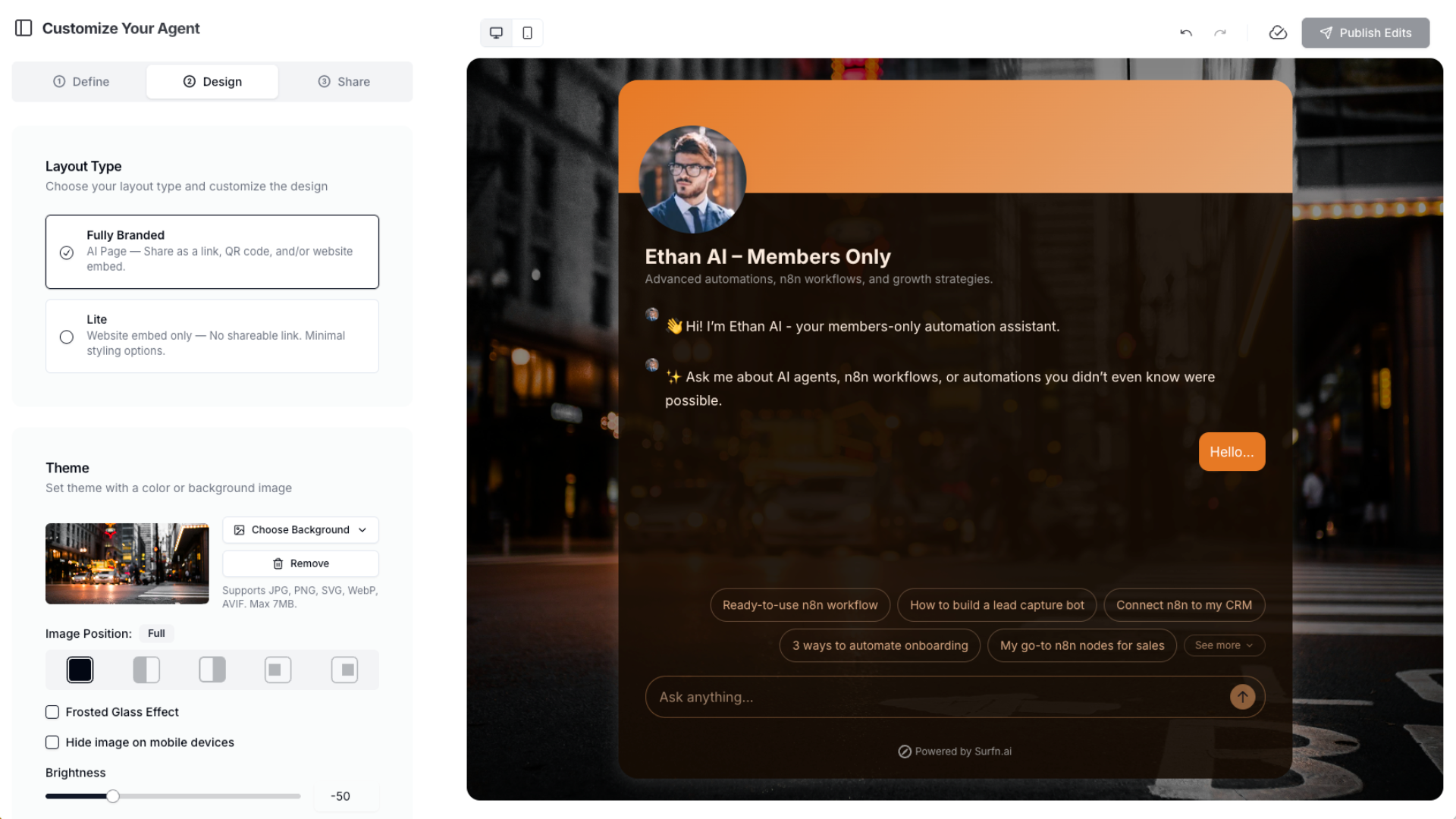
Step 4: Brand the experience in the Design tab
Next, move to Design. This is where you make the experience feel like part of your actual membership instead of a random chatbot.
You can customize things like:
layout
colors
light or dark mode
background image
banner
avatar border
font
chat box appearance
Use the same visual language as your course, portal, or community brand so the assistant feels native to the member experience.
Step 5: Share it with members
In the Share tab, choose how members will access it. You can copy a share link, edit the URL, generate a QR code, or embed it as a popup, slider, modal, full page, or inline experience.
For this use case, the best options are:
place the link inside your member dashboard
embed it directly inside your membership portal
customize the URL to match your brand or membership name
The key is accessibility. Put the assistant where members already are, not somewhere they have to hunt for.
Step 6: Test it before rollout
Use the preview panel on the right side of the dashboard to test real questions before sharing it. Surfn’s preview updates live, and you can also toggle between desktop and mobile views.
Test questions like:
where should i start?
what lesson covers this problem?
can you summarize this framework?
what should i do next based on my goal?
can you recommend the right resource for me?
Test it like a real member would. Ask messy, realistic questions, not just perfect prompts.
If the answers feel vague, the problem is usually one of three things: messy training data, weak instructions, or trying to support too many use cases too early.
A good first version should reliably answer common member questions, point people to the right content, and make it easier for members to know what to do next.
Best practices and common mistakes
Keep training data focused. Start with your best membership content, FAQs, and core resources.
Use Q&As for repeated member questions. They’re one of the easiest ways to improve answer quality quickly.
Don’t overcomplicate version one. Start with one clear job.
Make it easy to access. If members have to hunt for it, they won’t use it.
Test it before rollout. Don’t assume it works well just because it answers a few obvious questions.
If you want to capture onboarding answers, feedback, or other submitted data, you can add that later with AI Tasks and sync responses into Google Sheets or another tool through your workflow stack.
Final step
By this point, you should have a working Surfn assistant that helps your members get answers faster, find the right resources, and get more value from your content.
Start building your members-only AI assistant on Surfn today:
Surfn is actively improving the platform for coaches, creators, experts, and educators, and we’re working closely with membership and community operators to understand their specific goals, use cases, and feedback.
If your setup is more complex, or you want help thinking through how a members-only AI assistant should work for your audience, connect with the Surfn team directly here.
We’re especially interested in hearing from creators, coaches, and experts with established memberships or communities as we continue improving the product to better support real membership needs.
FAQ
What is a members-only AI assistant?
A members-only AI assistant is a private or gated AI experience trained on your membership, course, or community content so paying members can ask questions, find resources, and get guidance more easily.
How is this different from a basic chatbot?
A basic chatbot usually gives generic answers. A members-only AI assistant is trained on your actual content and can guide members toward the right lessons, resources, and next steps.
Can I use Surfn as an AI tutor for my course or membership?
Yes. One strong use case is creating an AI tutor trained on your course material, lesson pages, and YouTube videos so members can get more personalized explanations and answers based on their goals or questions.
What content should I train the assistant on first?
Start with your highest-value content: onboarding material, core lessons, FAQs, frameworks, and the resources members ask about most often.
Can I embed the assistant inside my membership platform?
Yes. You can place the assistant inside your gated portal or member dashboard, or share it through a link placed inside your member-only area.
How do I know if the assistant is working well?
A good first version should reliably answer common member questions, point people to the right content, and make it easier for members to know what to do next.
Do I need to upload everything at once?
No. It’s better to start with focused, high-value content and improve from there rather than dumping in every file you have.